
Smartblob Primer

One of the more frequent headaches for Informix DBAs is dealing with Smartblobs (BLOB/CLOB). They are powerful storage pieces to handle binary data. However, they have a special set of ways to handle working with them. Unlike other datatypes you can’t just directly store content in them, you have to handle them from files on disk or through the IO system.  

 If you have not worked with them before, they offer some advantages over traditional “Dumb” blobs (BYTE/TEXT). These include the ability to have them logged which allows use in replication. They also can be handled in part rather than reading the entire file at once. You also can easily load them from a file on disk. You are able to keep metadata on them to track things like the last accessed date. One other big advantage is they can store up to 4tb of data. You also can round robin store the data between multiple smartblob spaces. 

To set up the engine you need to create a smartblob space. To do this use the onspaces command with the -c -S flags. By default the space will be unlogged and automatically set up the space inside of the smartblob space to store the metadata. There are some flags you may want to set when creating the space: 

  • -Df buffering=ON  – Use the normal buffer pools rather than a separate memory pool just for smartblobs 
  • -Df ACCESSTIME=ON – Track the last time a smartblob is accessed 
  • -Df LOGGING=ON – Log the smartblob space, this can be changed later on if needed 
  • -Df AVG_LO_SIZE=<size> – Give a general idea of what size the average object will be, this can help storage efficiency  
  • -Ms 150 – The size of metadata, in K, the more objects you have the more metadata space you need, if you run out of metadata space it will block writing to that space 

onspaces -c -S sbspace -p /cooked_space/sbspaces -o 0 -s 1000000 -Ms 10000 -Df “AVG_LO_SIZE=5K,LOGGING=ON,ACCESSTIME=ON” 

Once you have done that, change the $ONCONFIG parameters of SBSPACENAME to define the default smartblob dbs and SBSPACETEMP as the default temp space when dealing with smartblob objects. 
At this point the engine is good to go to start working with smartblob fields. You can create them as normal columns of types BLOB or CLOB. One note is that by default they will go to the SBSPACENAME space, if you want them in another space(s) use the PUT flag.  

CREATE TABLE test_smartblob  ( serial_id serial, blobfield BLOB) PUT blobfield in (sbspace1); 

You can list multiple sbspaces in the PUT command, it will use them round robin.  
Note: as for all Round Robin fragmentation,   if you alter the table to change the PUT location it will not change prior records, it will only use those spaces for new fields 

Now, how to access those fields. There is a main set of functions to handle the fields.  
To load data use the functions FILETOCLOB and FILETOBLOB. You pass them the same way with the parameters of FILETOBLOB(“file_to_load.txt”, “server or client”);  
Where in this case if you define the second field as ‘server’ it will pull the file from the Informix server filesystem and if you set it to ‘client’ it will pull and upload the file from the client system.  

insert into table_a (image_data) values (filetoblob(“/tmp/latest_image.jpg”,’client’)); 

update table_b set latest_log = filetoclob(“/var/log/syslog”, ‘server’) where logname = ‘syslog’; 

To copy a smartblob object to another record use the LOCOPY function. Note that this creates a pointer to a file, not a separate file. 

INSERT INTO students_2026  (photo) SELECT LOCOPY(photo) FROM students:students_2025; 

To retrieve a file you use the LOTOFILE function. This works the same way as FILETOBLOB where you pass LOTOFILE(field_name, “output_file.txt”, “server or client”);  
Note however the output file by default will have a suffix of the internal object. So in this case it would write the file “output_file.txt.30cf2” 

select lotofile(user_image, ‘user_image.png!’, ‘client’) from users_table where user_id = 3; 

select lotofile(latest_tos, ‘/var/www/html/tos.html!’, ‘server’) from web_docs where doc_type = ‘tos’;  

If you want to change the naming scheme you can use ‘?’ in the filename to have it add in hex values to help keep the filename unique. While if you use a ‘!’ in the filename it stops at that point. So setting it to “output_file.txt!” will write out just ‘output_file.txt”  
One of the common headaches with it is there is not a direct way to get the size of a smartblob object. IBM/HCL has you covered here. There is a datablade called ‘excompat’ that adds additional functionality.  
If you need to add it to a database you need to register the datablade: 

execute function sysbldprepare(‘excompat.*’, ‘create’);  

It will add a set of additional functions. A full list can be found at: 
https://help.hcl-software.com/hclinformix/1410/dbxt/ids_dbxt_530.html 

The function that I find most useful is the dbms_lob_getlength function, which works just like you think it would. If you run it with dbms_lob_getlength(column) it gives the size in bytes of the record.  
One note with excompat. Make sure you are running version 1.2. Up to date Informix versions will have this bundled in $INFORMIXDIR/extend/excompat.1.2, if you are running an older version you may want to verify. There is a bug in version 1.1 and 1.0 where smartblob objects > 2gb will return ‘0’ for the length, it may also impact other functions from the extension with files over that size.  
One unofficial trick is if you are running an older version of informix you can get the updated extension from a newer system and it should be backwards compatible, just put it in the $INFORMIXDIR/extend directory.  

Note that Informix only stores a pointer to the smartblob object in the BLOB/CLOB field, not the actual file, which is why everything is stored in smartblob spaces and there is not an in-table storage option like there is with TEXT/BYTE. 

With all of that, smartblobs provide powerful features inside of Informix that add a great deal of flexibility when dealing with binary data. Sometimes it can be a little tricky to get started with them, however they can be a vital part of an advanced Informix environment. 

-Tom Beebe
xDB Systems, Inc
Next Virtual WAIUG Meeting Dec 11th at 9:30am EST

Our next WAIUG meeting is approaching! We are proud to be partnering with the IIUG to do this webinar. We have several excellent technical presentations.

  • IDS 15.0 – Unlimited and Future Proof –  John Lengyel (HCL)
  • Text to SQL Agent powered by Informix and Watsonx – Xavier Escoté (Deister)
  • Informix Encryption Everywhere Everyway – Thomas Beebe (xDB Systems)

Attendance is free, just click on the register button below to RSVP for the event.

Obtaining a History of Database Size

Mike Walker (mike@xdbsystems.com)

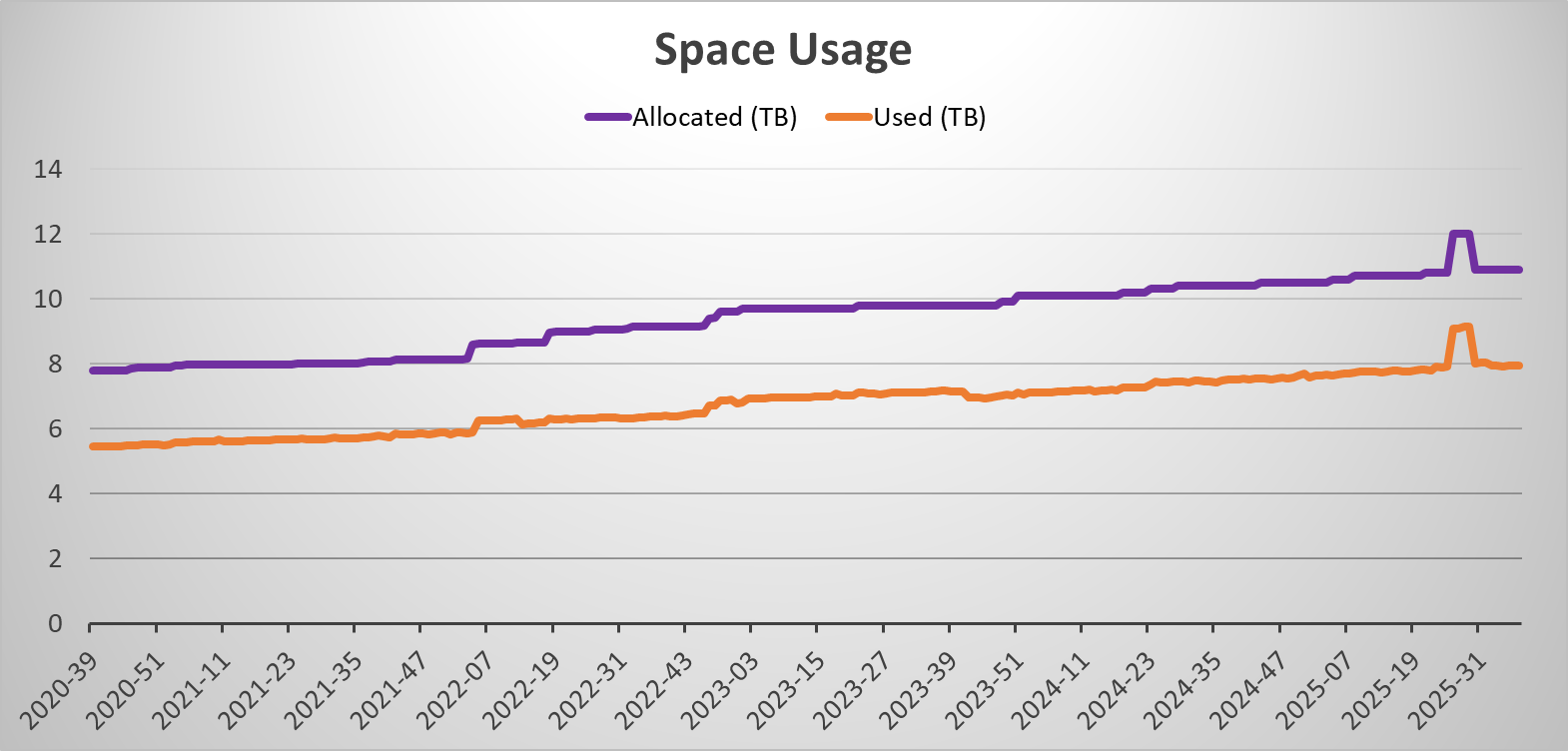
Tracking the space used by your Informix instance over time is valuable to make sure that sufficient disk is provisioned for future growth.
This should be one of several metrics that the DBA should be recording at regular intervals.
But what if you don’t have that history? The sysmaster:sysfeatures table can provide the database size (total allocated and used), each week, for up to 5 years.
Use a query similar to the following to obtain this history:
select
year||"-"||to_char(week, "&&") period,
total_size,
total_size_used
from sysmaster:sysfeatures
order by year, week;

Example:

period           2025-07
total_size       10.6 TB
total_size_used  7.71 TB

period           2025-08
total_size       10.7 TB
total_size_used  7.73 TB

period           2025-09
total_size       10.7 TB
total_size_used  7.75 TB

period           2025-10
total_size       10.7 TB
total_size_used  7.75 TB

Loading this data into a spreadsheet gives the ability to plot how the Informix instance has changed in size.

We can use this same data to answer various questions such as, “how much space has been allocated over the last 12 months?”.
The sysmaster:sysfeatures table has multiple metrics and other information, all of which can be used to show how the instance has changed over time. Among other things, this includes the number of connections, the memory used, and the instance’s role in a cluster. The following is an example showing the most recent record in this table and the information that is recorded:
select first 1 *
from sysmaster:sysfeatures
order by year desc, week desc

week 38
year 2025
version 14.10.FC3
max_cpu_vps 15
max_vps 33
max_conns 298
max_sec_conns 0
max_sds_clones 0
max_rss_clones 0
total_size 10.9 TB
total_size_used 7.95 TB
max_memory 111 GB
max_memory_used 107 GB
is_primary 0
is_secondary 0
is_sds 0
is_rss 0
is_er 0
is_pdq 1

SSL Certificates With 14.10FC10 and Later Changes

In FC10 IBM changed the requirements when using gskit so -type cms no longer works. The engine will come up with it but you will find you get a generic GSK8 error: “cannot initalize GSKit secure socket/GSK_ERROR_SOCKET_CLOSED” with no other information.

To get around this create a new keystore for clients in the .p12 format. Older certificates can be cleanly imported to provide backwards compatibility with older Informix systems already running ssl.

You need to add the -type pkcs12 -pqc false flags for this to work cleanly.

gsk8capicmd_64 -keydb -create -db clikeydb.p12 -pw my_password -type pkcs12 -pqc false -stash
gsk8capicmd_64 -cert -add -db clikeydb.p12 -stashed -file server.cert

Make sure to update $INFORMIXDIR/etc/conssl.cfg to use the .p12 filename rather than .kdb

Tom Beebe (tom@xdbsystems.com)

Setting Up Informix HQ With SSL

As security gets more important, and auditors get stricter about encrypted data we all want to make sure our environments have our data protected as much as possible.
Informix HQ is a great tool to help you manage your Informix environment, it doesn’t take too long to set up and can be incredibly valuable to your organization.

Once you have it set up you may notice that the communication between the HQ server and the agent are unencrypted, so lets change that.

In this example we will have the HQ system set up using the default: monitoring-server.properties and monitoring-agent.properties that can be found from the example files in $INFORMIXDIR/hq

The HQ system is set up with 2 different agents deployed to 2 Informix servers. We are going to reconfigure it to work exclusively over ssl. At this point stop the agents and the server.

Our first step is to use the java keystore tool ‘keytool’ to create a new keystore for us to use. Make sure to save the password you choose. In $INFORMIXDIR/hq run:

keytool -genkey -keyalg RSA -alias selfsigned -keystore hq_keystore.jks

When it prompts for “What is your first and last name?” make sure to put in the hostname of the HQ server. This needs to be the hostname that both the Informix server knows as well as the hostname you will use to connect to from browsers.

Next we need to modify monitoring-server.property file to enable SSL on the webserver, change:

httpsPort=8443  # This can be any secure port you want to use
redirectHTTPtoHTTPS=true
ssl.keystore.file=/opt/informix/hq/hq_keystore.jks
ssl.keystore.password=<password for the keystore above>

Note that some operating systems will not let non-root users start services on ports < 1024.

The log file should contain:

2024-11-29 15:45:25 [main] INFO  c.i.h.s.JettyServer - Serving UI from JAR...
2024-11-29 15:45:26 [main] INFO  c.i.h.s.JettyServer - Configuring server for HTTP on port 8080
2024-11-29 15:45:26 [main] INFO  c.i.h.s.JettyServer - Configuring server for HTTPS on port 8443

At this point if you go back to the url you will see it redirect you to the new https port (8443) and you will get a browser warning about a self signed certificate. This is fine to approve.

Next we need to get our agent to know about the SSL listener. First we need to pull the server certificate from the server keystore:

keytool -export -alias selfsigned -file server_cert.cer -keystore hq_keystore.jks

Next we need to create a new agent keystore, this will import the certificate from above and create a new keystore, give it a unique password

keytool -import -v -trustcacerts -alias selfsigned -file server_cert.cer -keystore agent_certs.jks

In the monitoring-agent.properties file change:

server.port=8443
ssl.enable=true
ssl.keystore.file=/opt/informix/hq/agent_certs.jks
ssl.keystore.password=<password above>

Bring up the agent as normal. You should see it connect and behave as normal, however now it will be communicating over encrypted channels. You can do the same keytool agent creation on any remote systems, or just copy the jks file over to them.

Tom Beebe (tom@xdbsystems.com)
xDB Systems Inc

Smartblob cdr sync Vs cdr check repl

Informix ER has a number of ways to move data in replicates.
I was doing performance testing of transferring smartblob data from an old server to a new one. The target table was empty for this test. It was about 5gb composed of 100K sized smartblob records.

Logging Modecdr synccdr check repl
Logging Off5:349:30
Logging OnLogical Log Rollback (DNF)9:54

Obviously having smartblob logging on for important data is the preferred way to do it. You *can* lose data with an engine crash if smartblob logging is off, even if the table itself is logged. However for copies, the fastest way may be with it disabled.

Next Virtual WAIUG Meeting

We have another amazing WAIUG meeting coming up in November 2024. It will be another virtual one partnering with the IIUG.
We are currently in need of speakers. If you have an interesting topic you would be interested in presenting please reach out to us using the contact form.

Stay tuned for more information!

Remove Newlines From an Informix Unload File

Informix character fields can contain special characters and even newlines. This allows for formatted data, e.g. a list spanning multiple lines within a single field. A newline is also an end of record character when a table is unloaded to a file, e.g. with the UNLOAD command, a dbexport, or optionally in an external table. To distinguish a literal newline character in the unload file, Informix escapes the newline with a backslash (“\”) to indicate that the next character does not have any special meaning. Note that the escape character can be changed by setting DEFAULTESCCHAR in the Informix configuration file ($ONCONFIG), or as a session environment variable.

When a file is loaded into a table with Informix, the escape character itself is not inserted into the table but instead directs the load to insert the following newline as a literal newline and to not treat it as the end of the record.

When loading such a file into a non-Informix database, the special significance of an escape character is not supported, and instead the loading utility will attempt to load the escape character itself and will then treat the embedded newline as the end of the record. This will usually result in an error because the record will have too few fields. Loading into Oracle for example may show as:

ORA-01722: invalid number

The usual solution for this condition is to convert the unload file and strip out the 2-character combination of backslash + newline. Most Unix utilities will also treat newlines as an end of record characters so you cannot just use a simple “search and replace” regular expression to identify and remove these combinations. There are several ways to tackle the problem, but I use the “sed” command with the “N” operator to pull up the following line when a line ends in a backslash, then remove the backslash + newline and replace it with a “space”. I choose to substitute a space for the newline to preserve readability in cases where the field may have contained a list.

The following is an example of a script that will perform this conversion. It also:

  • Strips return characters from the unload file
  • Replaces literal “\” characters, shown as “\\” in the unload file with a single backslash

The script assumes that the default character of “\” is used to escape newlines in the file.

INFILE=$1

if [[ ! -s "${INFILE}" ]]
then
   echo "File $INFILE does not exist or is empty"
   exit 1
fi

cat ${INFILE} | tr -d "\015" | sed '
:loopy
/\\$/{
N
s/\\\n/ /g
/\\$/b loopy
};
s/\\\\/\\/g
'


Input file (tstfile):

AAA|BBB|CCC|
DDD\
D\
DDD|EE\
EE|F\
F|
GGG|HHH|I\
II\
I|
JJJ|KKK|LLL|
MMM|List #1 - 1\\2 a thing\
List #2\
List #3|NNN|


Results:

./remove_nl.sh tstfile

AAA|BBB|CCC|
DDD D DDD|EE EE|F F|
GGG|HHH|I II I|
JJJ|KKK|LLL|
MMM|List #1 - 1\2 a thing List #2 List #3|NNN|

Mike Walker (mike@xdbsystems.com)
IBM Data Champion